
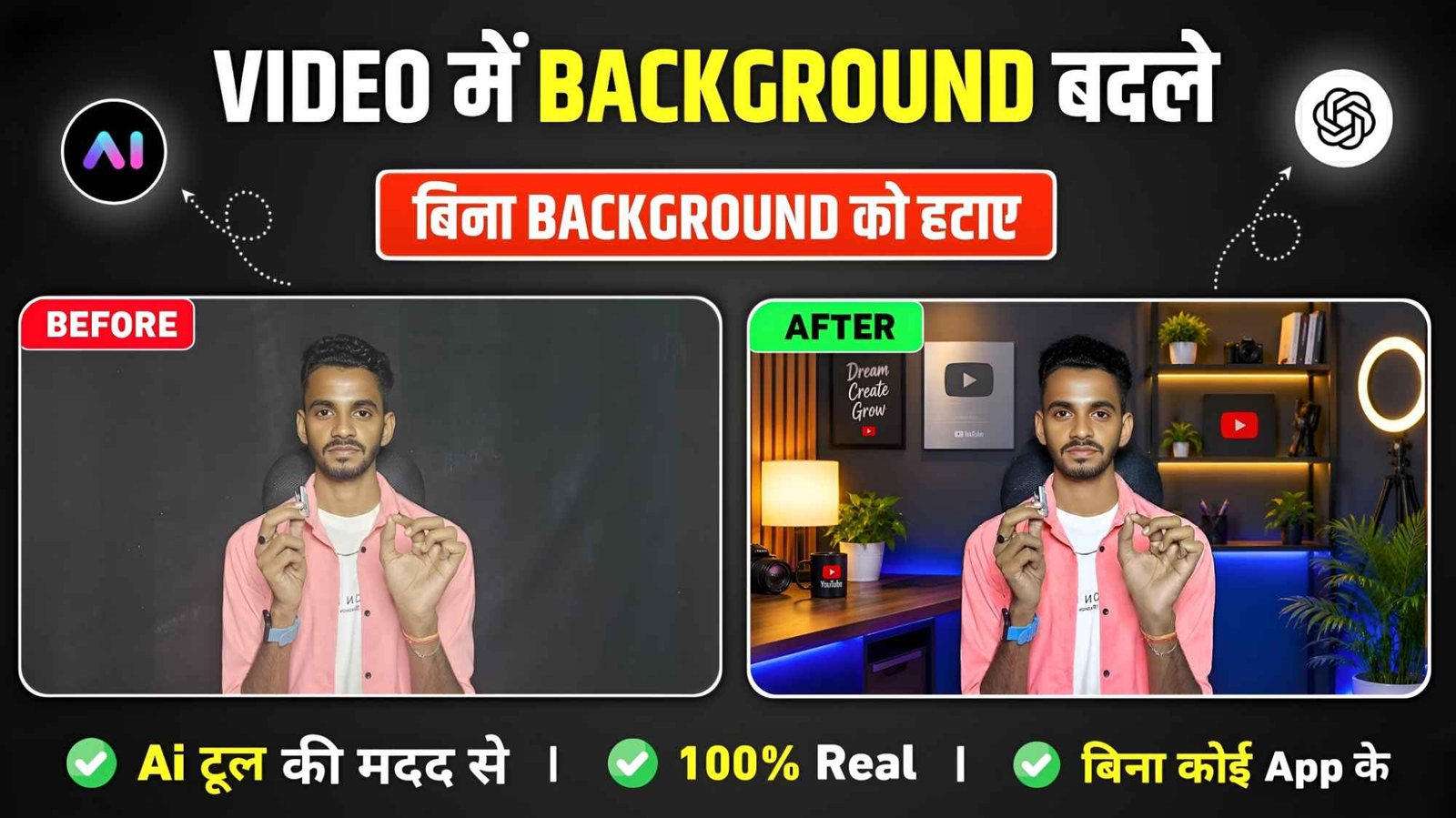
Video Background Change – Changing the background in a photo has become so easy these days that now we can easily change the background in any type of photo. Be it through editing apps or through artificial intelligence. People can easily change the background in their photos as per their wish, but when it comes to videos, everyone would feel that we cannot change the background in the video because if we change the background then it will not look as real. Just by watching you will know that the background has been changed in our video. But if I tell you. Now you can very easily change the background in your video, which will look so real that everyone will not be able to recognize that you have changed the background in the video. Yes, today’s article is related to this in which I will tell you how you can change the background in your video through artificial intelligence. We will tell you such a simple and easy method. Everyone can easily change the background in their videos. That is why you are requested to read today’s article carefully.
Background Change Video Editing In Every People
Even now, whenever I see content on social media that changes the background in the video or I watch people’s videos, think of it like this, people always tell me that first you go to the editing app and then add a background, as you have to keep the background in the video. Then add your video by clicking on the layer and with the help of Remove BG tool, remove the background of your video and place it on the new background properly. The background will change in the video but doing this is very bad because by doing this, our background gets changed but it looks so bad that everyone recognizes that we have changed the background in the video. What some people do is record video on green screen. Then remove the background using chorma key and add a new background. This is also the right thing to do but it doesn’t look so real. As far as I have seen, nowadays everyone follows the same process to change the background in their videos. Most people use green screen to remove the background in videos. So listen to me and leave this old way.
Now you can use chatgpt and any editing app be it vn, capcut, inshot. Through this, you can easily change the background of the video to look exactly like the original. What kind of background should we record the video on to change the background in our video or in other words, what kind of video should we record so that we can easily change the background in the video. Let us explain what it looks like in the next paragraph.
Record A Video To Make It Look Like Real?
To change the background in the video exactly like the original if record the video well. Only then is it possible to do this thing. If we do not record our video properly then the background cannot be changed to look like the original. That is why whenever you record a video, try to set your phone or camera on a tripod so that the recorded video does not move even a little bit. Secondly, while recording the video, try to record the video from a little distance and not from too close. The third most important thing is to decide on what kind of background the video has to be recorded. If you record the video on a normal plain background then it is very easy to change the background in the video. If we record on a different type of background then there may be a slight problem. Therefore, try to record your video on a black background, because black background is best for a YouTube video. After recording the video, open the video in Gallery and take a screenshot of the video.
Generate Background In Screenshot Photo
See, after you have recorded your video, after that open the video in the gallery and stop it at the right place and take a screenshot in a good way. After taking the screenshot, now you have to do a little editing in the screenshot photo as per your choice. Editing is to add whatever thing you want to keep in your video and the best AI tool to do this is chatgpt because through chatgpt we can easily add whatever we want in our photo. For this, just install chatgpt from Play Store and open it and first select the Create Image option shown on the screen and with the help of the video option, add the photo of the screenshot you have taken from the video and tell in the chat box what things you want to add in your video, like if it is your YouTube video, then you can tell them that look, this is a screenshot of my YouTube video and after editing my background in a good way, it will look like the complete YouTube Studio.
If you add all these things like different types of lights, tripod, ring light or silver play button lamp light, then it will easily add everything in the video photo as per your instructions. If you are not able to write a prompt, then I will also give you a prompt which you can easily use. You want to add anything as per your choice, then first add it in Notepad and whatever you want to add, you can add it by writing the text as per your choice. After giving the prompt in the chat box, click on the send button. chatgpt will easily add everything to your video photo. Now click on the created photo as per the prompt and save it. What to do next is explained in the next paragraph.
Background Change Prompt

AI PROMPT
Merge Screenshot Photo And Video Using An Editing App.
After generating the background in the photo with video from chatgpt, now you have to open any video editing app. Capcut will be the best. For such editing, open Capcut and add your photo which you have made through chatgpt. After adding the photo, keep it as per the length of the video and add the video by clicking. On the overlay and adjust it properly by zooming with both fingers. Now click on the masking tool and select the horizontal and mask it properly. Better masking will give you a better background change in your video. After doing this, now go to the adjust tool and adjust both properly. By doing color editing like brightness, contrast, Saturation, adjust all these as per your requirement. Do color grading in the video in a good way so that both the photo and video match with each other. By doing this your final video will be made. Background changing. Save by clicking on the Export button.
Conclusion
Many people easily change the background in their photos and there are some people. Who try to change the background in videos apart from photos. But are not able to do it well, so we have told in today’s article. How you can change your background to look exactly like the original using artificial intelligence in the video. In this article we have learned how to change the background in your video through chatgpt and capcut. Have talked about the same in a very real manner. Therefore, read all the paragraphs carefully and change the background in your video if you face any difficulty. You must contact us. Otherwise, you can ask about your problem in the comment box, you can also use the prompt given.
FAQ
1. Why Is Masking Important For Background Change?
Ans. – Accurate masking provides a clear separation between the subject and background, making the new background look more natural.
2. How Can I make The New Background Look Realistic?
Ans. – Match the lighting, shadows, color tone and background perspective of the subject.
3. Is A Green Screen Required?
Ans. – No, AI tools can change backgrounds without a green screen.