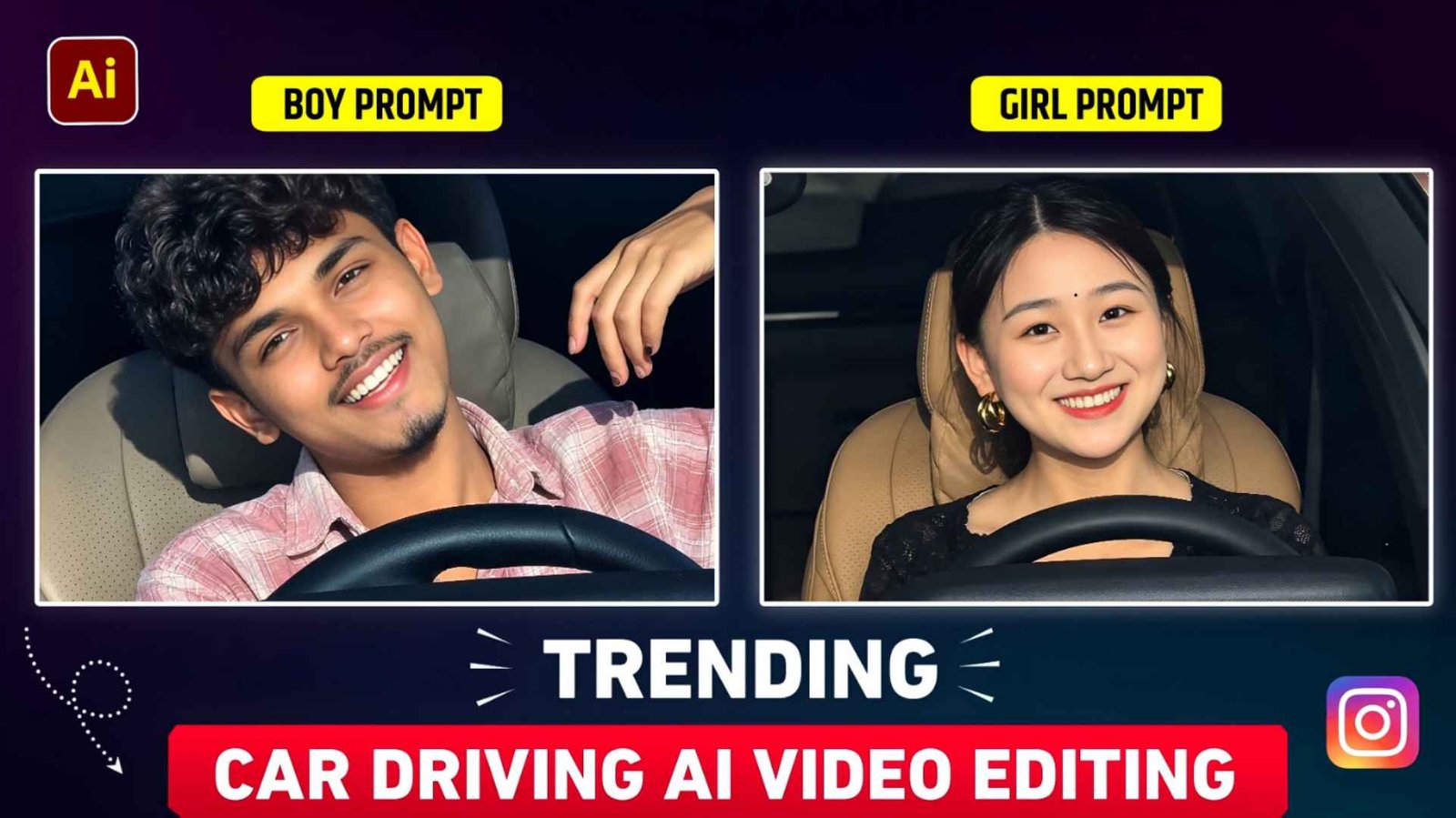
Car Driving Ai Video Prompt – With the advent of artificial intelligence, it has become very difficult today to identify whether anything, be it a photo or a video, is really real or has been created using artificial intelligence i.e. AI. Everyone keeps creating and uploading different types of content using AI. Be it photo related or video related. Recently, you must have seen a video of Mercedes CAR driving on social media, especially on Instagram or YouTube, which has been made using artificial intelligence and that video looks so real that if someone watches that video at first glance, then he will not be able to understand that this video has been made by AI because it looks so realistic that you do not even ask anything. That type of video while driving is becoming very viral all over social media. Many people are easily making such videos using one of their photos. If you are also thinking of making a similar video with the help of Create Video option in Google Flow and Gemini, then in today’s article we will talk about making a similar video and how that type of car driving video can be made.
Complete Guide Trending Car Driving Ai Video
The video starts with a photo of what people do while driving that way. First, take a good quality photo of yourself, in which your face is clearly visible. After that, using AI tools like Google flow, upload your photo in it and select the option to create video from photo. The video can be generated by simply writing the prompt in the chat box. After that, using editing apps, especially applications like vn and inshot, we make the video by adding slow motion, whatever we want to edit, and applying song effects as per our choice. People will also know that type of video by the name of Song Reels Editing. So overall, to make that kind of video, we will have to click a good photo in which our face is clearly visible. Additionally, we need a prompt that is created just for creating that type of video. We have seen many people making videos with the help of Google Gemini, so with Google Gemini we can easily make such videos while driving.
Just for this, create video option should be on in your gemini. Unless you take a subscription, you cannot use the create video option, so only those people who have subscribed can create such a video from gemini with the help of create video option. We will give complete information about making videos along with giving prompts. Be it with the help of Gemini or with the help of flow AI.
Some Tips To Get Better Results
Many people believe that we use prompt to make videos while driving. But as we have seen the video on the internet. If our video is not being made like that then there may be some reason for this. The first reason is that whatever reference photo you are using will not be of good quality due to which your face will appear distorted. The second reason is that the prompt will not be good due to which the video is not made. The third reason is that the video maker may not be setting the video correctly in flow AI. There may be many other reasons due to which even with the help of this, perfect results may not be achieved. Therefore, I believe that you should first click a good photo and also choose a good prompt which is really made for that video. Whenever we make a video, try to make it two to three times continuously.
After that, what to do is to cut small clips from all the videos and join them together through editing app and do color grading properly and you can also choose Enhance application to make the video HD and then make the video well by adding the song you know. Believe me, if you follow these steps, you can create a perfect video. The video which is going viral.
Car Driving Ai Video Prompt

AI PROMPT
How To Create Car Driving Ai Video Prompt?
As I told, we will tell both the methods whether it is about creating video with the help of Google flow or with the help of create video option in gemini. So let us tell you that only those people can make videos with Gemini, who have subscribed to Gemini and everyone else can make videos with Flow Ai. Let us know about both one by one.
1. Flow Ai
To make a video with the help of Google Flow, type Google Flow and search in any browser. If you want, you can also use the application. After searching, open the first website and login to it with your Google account. After login, select New Project option and instead of Nano Banana option, select Video option and select 16: 9. What to do after that: Click on the plus button from above and click on media and upload a good quality photo of yourself. Select the photo by pasting the video prompt in the chat box and as soon as you click on the generate button, the video will be ready.
2. Gemini Ai
To make videos with Gemini, install the Gemini app from Google Play Store. After installing the app, click on the plus button shown on the screen. Select the Create Video option, then what to do. Upload your photo by clicking on the plus button. Select 16:9 in the ratio and paste the video prompt to generate it. With Gemini you can easily create your own video.
Final Thoughts
Currently the video of Mercedes driving is going viral on the internet. If you have also come to our website with the purpose of making such a video, then today’s car driving ai video prompt. Will be the best option because in this article we have explained everything well about how to make that kind of car driving video. We have to click the photo. What to do to get better results? Also which prompt do we have to use to create the video. Which A tool to use. We have discussed everything thoroughly. So, by using the given prompt, you must join that trend and make such a video.
FAQ
1. Why AI Car Driving Video Does Not Become Realistic?
Ans. – There could be several reasons for this, such as poor quality. The reference photo, not using the correct prompt or not using the video generation settings correctly.
2. What Kind Of Photos Do You Need For An Ai Video?
Ans. – Use clear, high-quality photos with good lighting.
3. How to Edit AI Car Driving Video?
Ans. – Add clips to VN or InShot, do color grading and apply music/effects.